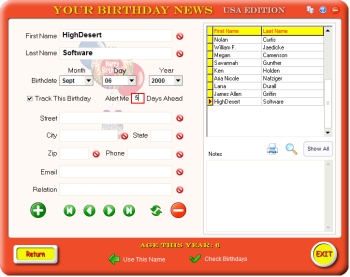
The Address Book
allows you to store birthday info for your friends, family, or clients. Just
fill in the boxes. Entries are saved
as you type. All entries currently in the database will be displayed in
the upper right table. Selecting a name in the table will display the info
for that person to the left. Below
that, you can enter notes, or reminders about that person.
Use the green navigation buttons to view the first,
previous, next, or last record, or refresh the table. The red button will delete
the current record.
Click the
"Use This Name" button to automatically
enter it into the main screen. The "Return" button will take you back to the main screen.
Database Backup and
Restore
: The address book database is automatically backed up on
program exit to a subfolder called backup. Should the main database become
corrupted for any reason, you can restore the last saved copy by clicking the
 button in the upper right corner of the
screen.
button in the upper right corner of the
screen.
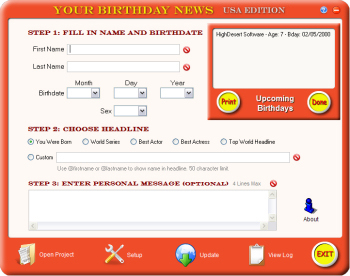
Tracking Birthdays : If you
would Like Your Birthday News to remind you when someone's birthday is coming
up, check the "Track This Birthday"
checkbox, and
enter the number of days before you would like to be reminded. The number of
days is mandatory. When you start the program, it will automatically check for
upcoming birthdays according to the number of days entered, and display a panel
on the main screen showing the birthdays that were
found, as shown to the left. You can also print this birthday list, if you wish,
from this panel. Click "Done"
to slide the panel up out of
the way.
If you want to know who's
birthday it is TODAY, click the "Check Birthdays"
button at the bottom of the screen, and click "Track
Todays" in the panel shown above. Click the "Check
Tracked"
button to check for
any tracked birthdays due today. These will also be displayed in a slide
down panel, if any are found. "Cancel" will hide
the panel.
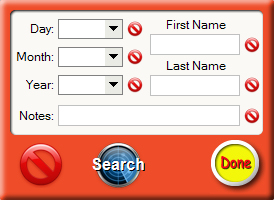
Easily search through the database with the
Search Box. Search for first or last name, day, month or year, or your
notes. Click the magnifiying glass to bring up this panel. The large circle and
bar button will clear all entries, the small ones individual entries. Click the "Search" button to begin the search. The search results will
display in the table above it. Clicking "Done" will
close the panel.
To show all the records in the table, click "Show
All".
 Your Birthday News